About Free Task Tracker
Free Task Tracker is simple but powerfull task management system. You can use it to manage your projects and tasks alone or togather with team. This is a short guide about the project.
Tasks
Right after sign up you will get to tasks page of your first project which is created automatically and called "My first project". There are no tasks in new project by default and interface looks like on the following picture.
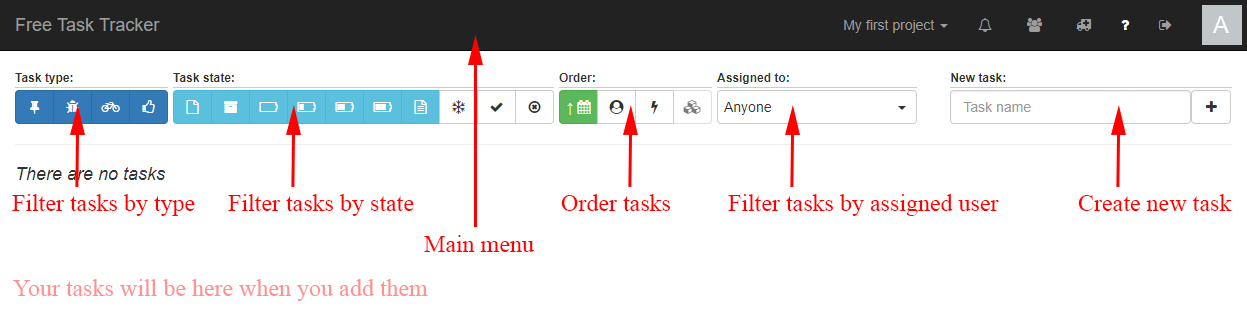
It has a simple interfaces: main menu, filters block, and tasks block.
Task type filter allows you to show/hide specific type tasks.
Task state filter allows you to show/hide specific state tasks.
Order section allows you to sort tasks by creation time, name, priority, and custom. Custom sorting means you set order by your own. To do it just drag and drop tasks in the order you want.
All filters are linked to the project. It means if you change active project and setup filter and then switched to previous project again you won't lose you filter settings.
To create a new task just type its name in "New task" input and press Enter or click on "+" button near the input field. The task will appear below in tasks block shown below(with some tasks created).
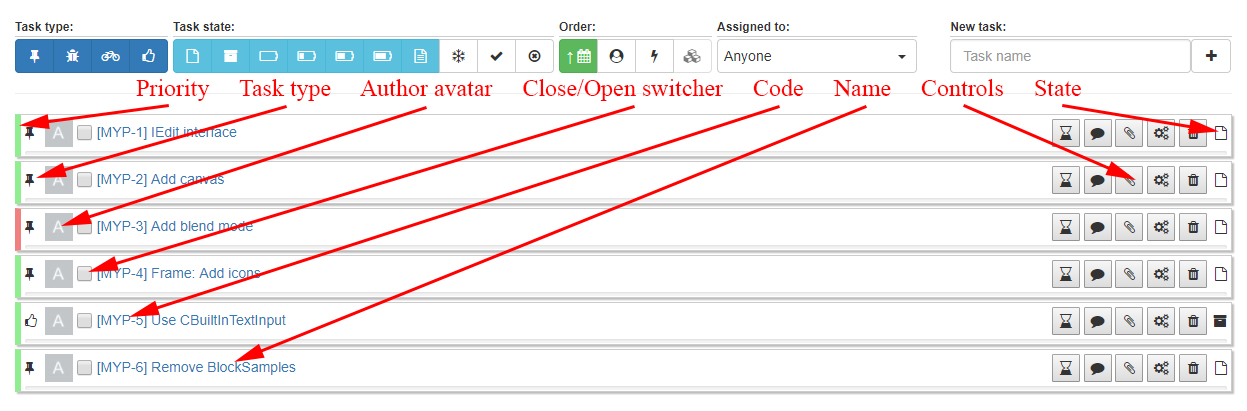
Each task has following parts
- Priority marker indicates task priority. There are several possible priorities. By default task priority is normal.
- Task type indicates type of task.
- Author avatar is avatar image of the user who created the task. Your avatar could be changed at profile page. By default it is generated using your name initials.
- Close/Open switcher is used to quick switch task states between "Done" and Re-opened". By default tasks marked as "Done" are hidden. You may use it to simply mark your task as finished.
- Code indicates task short code in the project.
- Name is the name you have entered while creating the task.
- Controls block contains several buttons which allow you to change the task. The are "Worklog" button(allows you to log spent time), "Comment" button(allows to read and write comments to the task), "Files" button(allows to manage files attached to the task), "Settings" button(allows to change task settings), "Delete" button(allows to delete not needed task).
- State indicates current state of the task.
If you click on task name you will go to the task information page where you also can edit worklogs. If you have set estimated time for the task, you will also see it's progress while logging spent time.
Menu
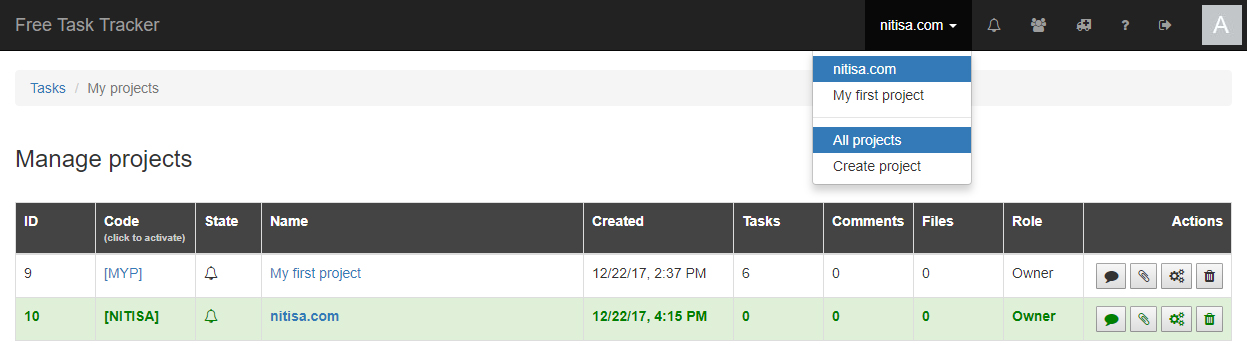
Main menu provides access to all parts of the task tracker. It contains dropdown with current project name, 3 latest projects, and options to see all available for you projects and create new one.
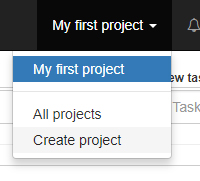
After projects dropdown there is a notification icon. It leads to the page with notifications for you. When you will have one or more notifications, its count will be shown near this icon in red circle so that you can't miss it. Next to it there are icons for accessing teams page, writing to supoort, accessing this article, sign out link, and clickable avatar image leading to your profile settings.
Teams
You may work on your project alone but you also may work on it in a team. This task tracker allows you to manage projects by group of people called team. To access team management page just click on corresponding icon in main menu. By default you have no teams. Just type team name and click Enter to create new one.
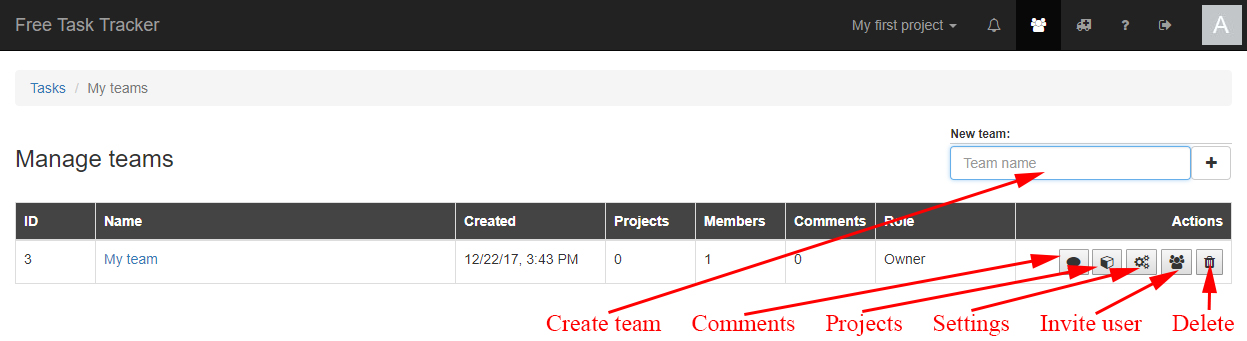
All teams you are created or participated in are shown on this page. In the table, in the last column there are buttons you can use to manage a team. You can read and write messages in team's chart. You can add and remove your projects to/from the team(when you add project to the team it becomes available for all users who are in the team). You can change settings of the team(like name and description). You can invite other people to the team. And you can delete your own teams if they are not needed anymore. By clicking on team name in the list you will go to the team details page where you can manage team users and invitations. You may expel user from the team and cancel invitation at that page.
Projects
You may create new project from main menu project dropdown by clickin on "Create project". The following project creation popup will appear.
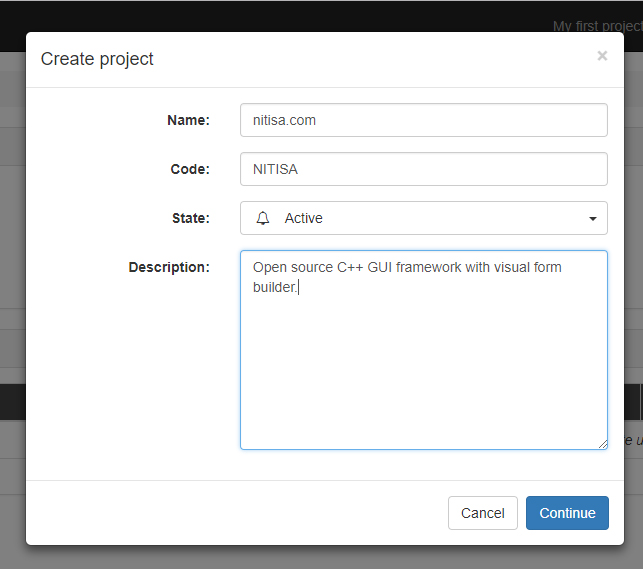
You have to provide project name and code. Code should have only latin characters and should be from 2 to 6 characters long.
To see all your projects just go to "All projects" in project dropdown in main menu. Here you can change your current project to selected one by clicking on its code, read and write comments, manage attached files, change project settings, and delete your own projects. Current active project is highlighted in bold green in the list.
Profile
At the profile settings page, which can be accessed by clicking on avatar image at the very left of the main menu, you can change your name, email, password, and avatar image.